 how-to
Aerial Drone Photography Post-Production Workflow
Table of Contents
- Why a Repeatable Drone Post-Production Workflow Beats One-Off Edits
- Step 1: The Drone Photo Organization Workflow From Card Ingest to Archive
- Step 2: Choosing Drone Photo Editing Software That Fits Your Deliverables
- Step 3: How to Edit Drone Photos for Exposure, Color, and Detail
- Step 4: Drone Photography Export Settings and Client Delivery Specs
- Video Files, Proxy Workflows, and Relinking Aerial Footage
- Quality Control and Ethical Editing: What to Fix and What to Leave Alone
- Conclusion
- Frequently Asked Questions
Last Updated: October 17, 2026
Why a Repeatable Drone Post-Production Workflow Beats One-Off Edits
An aerial drone photography post-production workflow is a fixed, repeatable sequence for moving drone files from the memory card to a finished, delivered image or clip. The reason is simple: one-off edits feel fast and cost you time later. A fixed workflow lets you find any file, match any past edit, and hand off work without starting over.
Most pilots skip this step. They shoot, dump files into a folder called "New," and edit whatever looks good that night. Three months later, a client asks for a reshoot match and nobody can find the original.
A repeatable workflow fixes four things at once:
- Every file has a home and a name
- Every edit starts from the same base
- Every export matches the client's spec
- Every job can be repeated by someone else
That last point matters most for teams. If only one person can process your aerial images, you have a bottleneck, not a workflow.
Step 1: The Drone Photo Organization Workflow From Card Ingest to Archive
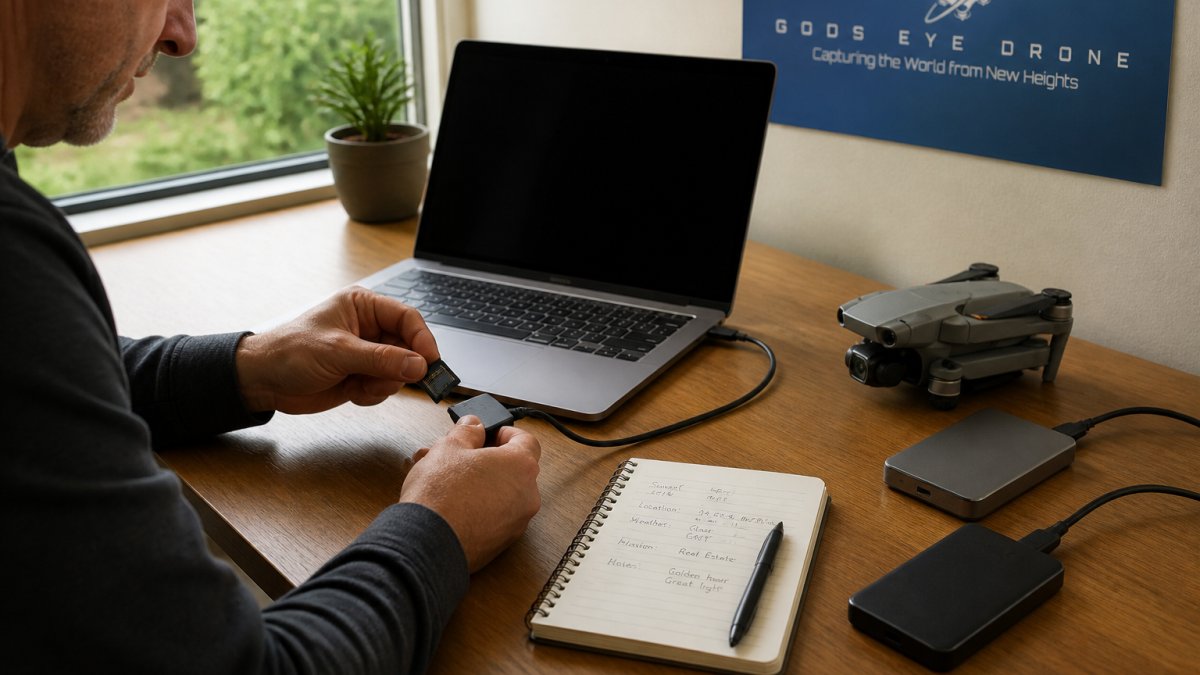
The drone photo organization workflow starts before you open an editor. Copy files off the card, verify the copy, then rename and file them in a dated folder tree. Do this the same day you fly. Cards get lost, formatted, or overwritten, and a reshoot costs more than ten minutes at a desk.
Folder Structure That Survives a Busy Season
Use one parent folder per client, then one subfolder per shoot date, then split raw and edited files. A structure like Client / 2026-10-17_PropertyName / RAW, SELECTS, EDITED, EXPORT holds up well. Name the shoot folder with the date first so it sorts correctly.
Backup Rules and File Naming
Follow the 3-2-1 rule: three copies, two kinds of media, one off-site (Data Backup Strategies: Why the 3-2-1 Backup Strategy is the Best). Rename files with shoot date, location code, and a sequence number so nothing collides. Keep the originals untouched forever.
Step 2: Choosing Drone Photo Editing Software That Fits Your Deliverables
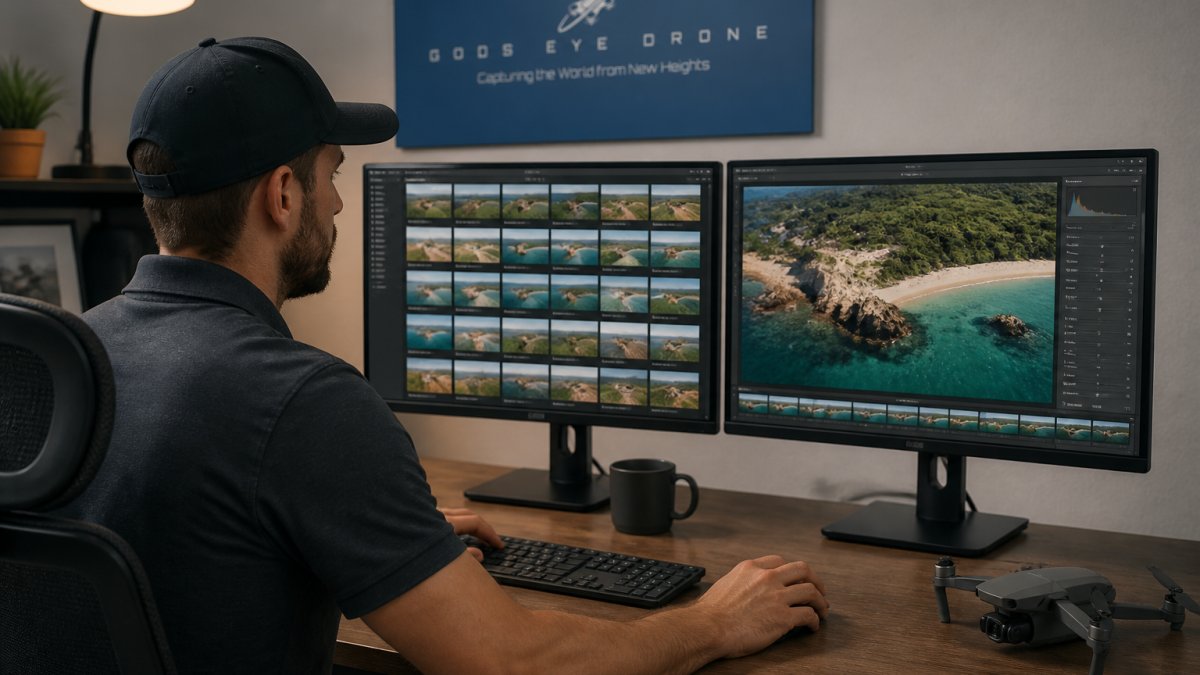
Pick drone photo editing software based on what you deliver, not on what looks impressive. Stills-only work runs well in Adobe Lightroom Classic or Capture One. Mixed stills and video needs a suite that handles both, such as Adobe Photoshop plus Premiere Pro. Batch-heavy property work favors anything with strong preset and sync tools.
Ask three questions before you commit:
- Does it read your drone's RAW format natively?
- Can it batch-apply corrections across a hundred frames?
- Does it export to the file types your clients ask for?
A common mistake is buying a video-first editor for a stills business. In practice, you pay for tools you never open.
Step 3: How to Edit Drone Photos for Exposure, Color, and Detail
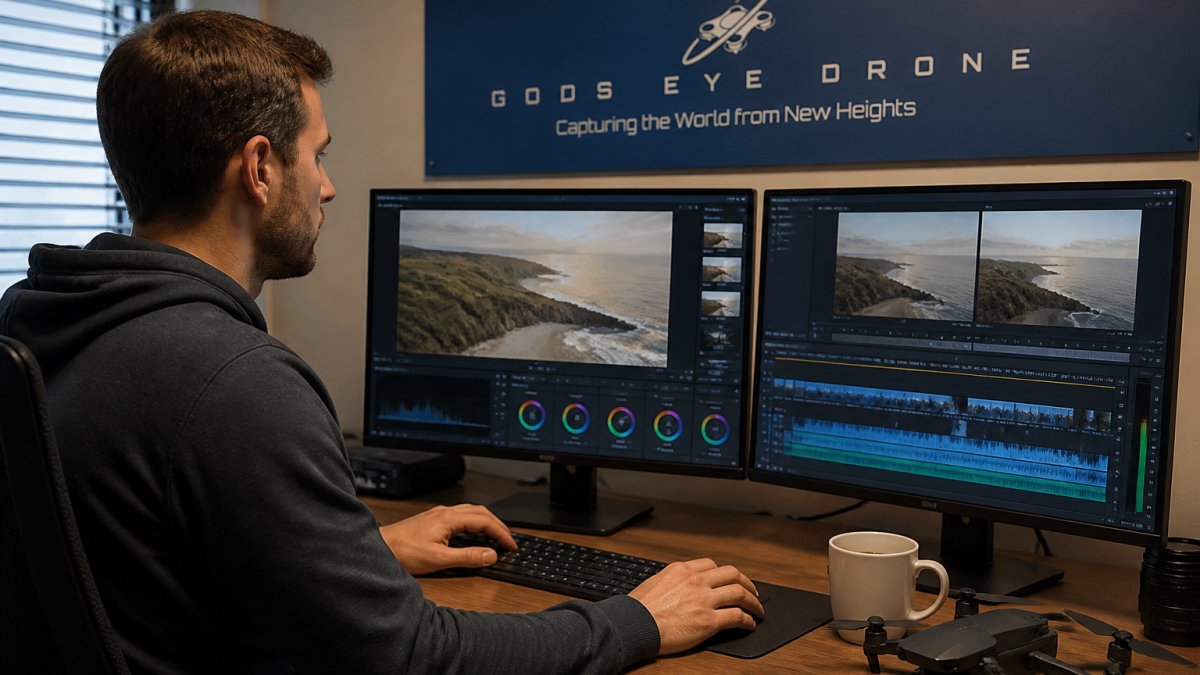
Editing drone photos well comes down to fixing what the camera got wrong and leaving the rest alone. Aerial images carry haze, wide dynamic range, and lens distortion that ground cameras rarely see. Work in this order: lens corrections, exposure, color, then detail. Skipping ahead to color before correcting geometry is the most common reason an aerial edit looks "off" even when the histogram is clean.
RAW Processing and Lens Corrections for Drone Cameras
Start in RAW, not JPEG. A drone JPEG has already baked in sharpening, noise reduction, and a contrast curve, which leaves little room to recover a blown roof or a shadowed tree line.
Apply the lens profile first. Most drone cameras have a fixed wide-angle lens with measurable barrel distortion, vignetting, and chromatic aberration at the frame edges. In Adobe Lightroom Classic or Camera Raw, enable profile corrections and remove chromatic aberration before touching exposure.
Then set white balance and exposure. Drone sensors clip highlights fast on bright roofs, water, and concrete, so pull highlights down before pushing shadows up.
Handle noise before sharpening. Aerial frames often need luminance noise reduction at low ISO because the sensor is small and the gimbal is moving.
Panorama, HDR, and Photogrammetry Set Handling
Panoramas and HDR sets need merging before individual edits. Merge first, then edit the merged file, never the other way around.
For panoramas, shoot with overlap of roughly 30 percent and lock exposure and white balance across the set. Merge in Lightroom, Camera Raw, or PTGui, then correct the horizon and projection before color work. A stitched panorama that is edited frame-by-frame will show banding in the sky.
For photogrammetry, keep the original frames untouched and process copies, because the software needs the raw geometry. Do not apply lens distortion correction to photogrammetry source images unless your software explicitly asks for it; correcting distortion can break the camera model the solver depends on.
A Repeatable Edit Order for Aerial Stills
- Import and cull at full size, not in a grid.
- Apply the lens profile and remove chromatic aberration.
- Set white balance against a known neutral in the frame.
- Recover highlights, then lift shadows.
- Apply noise reduction at 100% zoom.
- Sharpen with a mask that excludes sky and water.
- Correct horizon and crop.
- Apply color grading last, and sync the grade across the set.
Syncing the grade across a set is what makes a delivered gallery look like one shoot instead of twenty separate edits. Save the order above as a preset stack so every job starts from the same base.
Step 4: Drone Photography Export Settings and Client Delivery Specs
Drone photography export settings should match the client's actual use, not your monitor. Most delivery failures are not editing failures; they are exports that were sized, colored, or compressed for the wrong destination. Decide the deliverable before you open the export dialog, and write the spec down so the next job matches it.
Match the Export to the Destination
| Deliverable | Format | Color Space | Resolution and Bit Depth | Typical Use |
|---|---|---|---|---|
| Web listing photos | JPEG | sRGB | Long edge 2,000-3,000 px, 8-bit, quality 80-90 | MLS and property sites |
| Print and brochure | TIFF or high-quality JPEG | Adobe RGB | Full resolution, 8- or 16-bit TIFF | Marketing print |
| Client video | H.264 MP4 | Rec.709 | 1080p or 4K, 8-bit, 50-100 Mbps | Web and social |
| Archive master | RAW plus edited PSD or TIFF | Camera native | Full resolution, 16-bit TIFF or PSD | Future reuse |
Two rules sit above the table. First, never upscale a drone still to hit a print spec; deliver the native resolution and tell the client the maximum print size. Second, never convert to sRGB and then back to Adobe RGB; convert once, at export, from the working space.
Color Space, Bit Depth, and Compression
Bit depth matters most when you expect further editing. Export 16-bit TIFF when the client may retouch or print large; export 8-bit JPEG when the file is final. For video, H.264 at 8-bit Rec.709 is the common delivery format, but keep a higher-bitrate master if the client may re-edit.
Compression is a trade-off, not a setting to max out. JPEG quality 80-90 is usually indistinguishable from 100 at web sizes and cuts file size substantially. For video, 50-100 Mbps at 4K H.264 is a practical delivery range; pushing higher rarely helps a web platform that will recompress anyway.
Naming, Delivery, and Version Control
Name exports with the client, date, and version: ClientName_2026-10-17_v01. Deliver through a link, not an email attachment, and keep the master files. Send a short delivery note that states the color space, resolution, and intended use so the client does not resave a JPEG three times before posting it.
A Final Export Checklist
- Resolution matches the destination, not the camera's maximum by default.
- Color space is embedded and matches the platform's expectation.
- Bit depth is 16-bit for anything that may be re-edited, 8-bit for final web files.
- File names include client, date, and version.
- One file has been opened on a second screen to confirm color and sharpening.
- Masters are archived before the delivery link is sent.
Video Files, Proxy Workflows, and Relinking Aerial Footage
Aerial video slows editing software fast, so build proxy files on import. Proxies are small, low-resolution copies you edit with, then swap back to the originals before export. Relinking is the step where the editor reconnects those proxies to the full-quality source files. Get the folder names right and relinking takes seconds. Get them wrong and you spend an afternoon hunting clips.
Keep the original footage on a fast drive, proxies on the working drive, and never rename source files after the project starts.
Quality Control and Ethical Editing: What to Fix and What to Leave Alone
Quality control is a fixed checklist you run before any file leaves your desk. Ethical editing is knowing which changes are corrections and which are misrepresentations.
Fix these:
- Lens distortion and vignetting
- Exposure and white balance
- Dust spots and sensor artifacts
- Straightening a tilted horizon
Leave these alone or disclose them:
- Removing structures or features from a property image
- Altering site conditions for an inspection client
- Changing crop health color for an agricultural report
Aerial images get used in listings, inspections, and insurance claims. A cleaned-up photo that hides a defect can create real liability. Run every export through the same checklist and log what you changed.
Conclusion
The hard part of aerial work is not the flying. It is keeping hundreds of files findable, consistent, and defensible months later. Build one workflow, run it every time, and the editing gets faster while the results stay the same.
If you would rather hand that off, Gods Eye Drone handles the full pipeline. Our certified pilots capture the aerial images, and our team manages the processing, color, and delivery specs from card to client. Book Now and get aerial deliverables you can actually use.
Frequently Asked Questions
What is a good post-production workflow for drone photography?
A reliable sequence is ingest, back up, cull, edit, export, and archive. Copy cards into a dated project folder, duplicate to a second drive, then flag keepers before opening the editor. Do RAW processing and lens corrections first, then exposure and color, then export at the sizes your client needs. Finish by moving source files and exports to long-term storage. Keeping the same order every shoot is what makes drone post-production fast and repeatable.
Should you edit drone photos in RAW or JPEG?
Edit in RAW whenever the drone supports it. RAW files hold more highlight and shadow data, which matters for aerial images where sky and ground often sit several stops apart. JPEGs bake in sharpening and compression, so heavy color correction or exposure recovery falls apart quickly. If a client needs images the same day, shoot RAW plus JPEG, deliver the JPEGs, and keep the RAW files for later re-edits.
How do you correct distortion in aerial drone photos?
Start with the lens profile built into your drone photo editing software, which corrects barrel distortion and vignetting for that camera model. Wide-angle drone lenses bend straight lines near the frame edges, so enable the profile before straightening horizons. For building facades, use vertical or keystone correction to bring walls upright. Shoot slightly wider than the final crop so you have room to correct without clipping the subject.
What export settings should you use for drone photography?
For real estate and listing work, export JPEGs at full resolution, sRGB color space, 8-bit, with quality around 80 to 90 percent, which keeps files under about 10 MB for fast uploads. Deliver print or marketing masters as 16-bit TIFFs. Match the client's aspect ratio, usually 3:2 or 4:3, and apply output sharpening for screen. Keep a full-resolution master of every delivered image in case a client requests a larger size later.