 how-to
Fix Shaky Drone Video in Post Production: A Step-by-Step Guide
Table of Contents
- What Causes Shaky Drone Footage
- How to Fix Shaky Drone Video Using Automatic Stabilization
- Stabilize Drone Footage in Premiere Pro
- Best Video Stabilization Settings for Drone Footage
- Drone Video Stabilization Without Cropping
- Previewing and Rendering Stabilized Footage
- Common Mistakes to Avoid When Stabilizing Drone Video
- Preventing Shaky Footage on Your Next Drone Flight
- Frequently Asked Questions
Last Updated: October 19, 2026
What Causes Shaky Drone Footage
Shaky drone video comes from specific mechanical, environmental, and technical issues you can identify and address. Understanding the source is half the battle when you fix shaky drone video in post production.
The culprits fall into three categories: vibration from the drone, rolling shutter artifacts, and external forces like wind. Each creates a different type of movement and requires a different fix.
Propeller Vibration and Motor Imbalance
Propeller vibration is the leading cause of shaky footage from consumer and professional drones. When motors spin at high speeds, even tiny imbalances create ripples through the entire airframe.
Unbalanced propellers produce a subtle shimmer or pronounced jitter, showing up as a consistent tremor throughout your video.
Motor imbalance compounds the problem: worn bearings or manufacturing defects make one motor spin differently, creating uneven thrust and vibration at specific frequencies.
Check propellers before every flight for cracks, warping, or wear, and replace any damaged ones. A bent propeller is one of the easiest fixes and often eliminates vibration entirely.
Rolling Shutter and Jello Effect in Drone Videos
Rolling shutter creates the jello effect, a distinctive warping or wobbling that makes your footage look unstable even when the drone is perfectly still.
When your drone vibrates during that scan, different parts of the frame capture movement at different moments, producing a warped, jelly-like appearance that's hard to fix in post.
The jello effect appears most obviously when you pan quickly or the drone moves suddenly, showing as a subtle wave or ripple, especially visible in straight lines like building edges or horizons.
Faster shutter speeds reduce rolling shutter problems. A shutter speed of 1/500th or faster minimizes the window where vibration affects different parts of the frame.
Wind and Environmental Factors
Wind is an invisible but powerful force that destabilizes drone footage. Even light breezes push your drone around, and your camera picks up every correction your stabilization system makes.
Strong gusts create visible drift and wobble. Your gimbal works hard to compensate but can only do so much, leaving footage shaky despite built-in stabilization.
Beyond wind, thermal currents from hot surfaces, water reflections, and turbulence near buildings push your drone unpredictably. Flying on calm days or early mornings when the air is stable produces the smoothest footage.
Check wind before you fly. Most professional drones perform best under 15 miles per hour; in stronger conditions, expect instability you'll need to address in post production.
How to Fix Shaky Drone Video Using Automatic Stabilization
Automatic stabilization is your fastest path to smoother footage. Modern editors analyze your video and apply smoothing automatically, tracking camera movement and reducing jitter with minimal effort.
The software tracks dozens of points across your frame from frame to frame, then applies corrections to smooth unwanted motion while preserving intentional pans and tilts.
Start with automatic stabilization before you move to more advanced techniques. It solves most vibration and minor shaking problems without requiring you to adjust individual settings.
Adobe Premiere Pro, DaVinci Resolve, and Final Cut Pro all include stabilization tools.
Automatic stabilization works best on moderate shaking. Heavy vibration or significant rolling shutter may need manual adjustments or multiple passes.
Stabilize Drone Footage in Premiere Pro
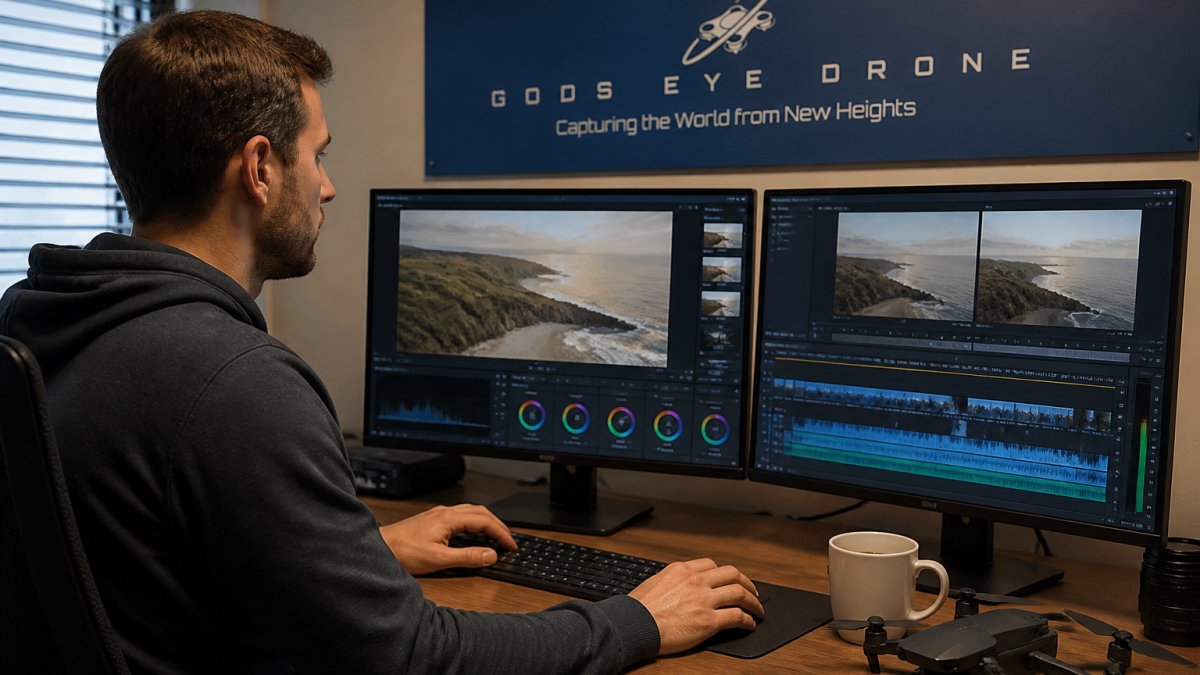
Premiere Pro's Warp Stabilizer is the industry standard for fixing shaky drone video. It combines motion tracking with warping technology to smooth out camera shake while preserving your shot's composition.
Setting Up the Warp Stabilizer Effect
Drag your footage to the timeline, right-click the clip, and go to Effects > Distort > Warp Stabilizer.
Drag Warp Stabilizer onto your clip and it begins analyzing automatically, with a progress bar in the Effect Controls panel. Analysis typically takes 30 seconds to several minutes depending on clip length and processing power.
Once analysis completes, stabilization is applied to your preview. Default settings work well for most drone footage. Your clip may appear slightly zoomed in, which is normal: Warp Stabilizer crops the edges slightly to have room to shift pixels and smooth movement.
Adjusting Motion Analysis and Tracking
The most important adjustment is Stabilization Strength, which controls how aggressively the effect smooths motion.
Set Stabilization Strength to 100 for maximum smoothing on heavily shaky footage, or 50-75 if you want to preserve intentional camera movement while still reducing unwanted vibration.
The Method dropdown offers Subspace Warp and Position Only. Subspace Warp, the default, analyzes motion across the entire frame and works best for most drone footage. Position Only is faster but less effective on complex movement.
Enable Result > Show Detailed Analysis to see how the software tracks your footage. Green dots show tracked points; if tracking looks poor in certain areas, manually adjust tracking regions.
Best Video Stabilization Settings for Drone Footage
The right settings depend on your footage and the movement you're fixing. Heavy propeller vibration needs different settings than wind or rolling shutter.
Smoothness and Stabilization Strength
Smoothness controls how much the stabilizer dampens motion. Higher values create buttery, flowing video; lower values preserve more original camera movement and feel more natural.
For drone footage, start with Smoothness at 50 for noticeable stabilization without artificial pans. Increase to 75-100 if footage looks too jittery; decrease to 25-50 if intentional movements feel overly smoothed.
Stabilization Strength determines the overall intensity of the effect. Set it to 80-100 for footage with visible vibration from propeller imbalance or wind.
Test different combinations on a small segment first. Apply the effect, render a preview, and watch it at full resolution. What looks smooth at half resolution might reveal artifacts at full size.
Balancing Stabilization with Image Quality
Aggressive stabilization comes with a cost: edge artifacts and slight image degradation. The software must shift pixels around to smooth motion, which can create visible warping at the frame edges.
Your frame gets cropped slightly to provide the software room to work. This crop is usually imperceptible, but on tight shots it can cut off important details. Check your framing after applying stabilization.
Rolling shutter wobble requires a different approach than simple vibration. The Warp Stabilizer handles it well, but you may need to increase Smoothness to 75-100 to fully eliminate the jello effect. This higher smoothness can make fast pans look unnatural, so use it selectively on problem areas.
Drone Video Stabilization Without Cropping
Stabilization always involves some trade-off between smoothness and composition. Understanding these trade-offs helps you make better decisions about which stabilization method to use.
Understanding Crop and Edge Artifacts
The Warp Stabilizer crops your frame to create space for pixel shifting. A typical crop removes 5-15% from each edge. On a 4K frame, this is usually unnoticeable. On a tight 1080p shot, it becomes obvious.
You can reduce cropping by lowering Stabilization Strength. This preserves more of your original frame but leaves more shake in your footage. It's a direct trade-off: smoother video versus wider composition.
Edge artifacts appear as subtle distortion or warping along the frame borders. These happen because the stabilizer is stretching and compressing pixels to smooth motion.
Shoot with slightly wider framing than you need. This gives you room for cropping and lets the stabilizer work without cutting off important elements.
Alternative Methods to Preserve Frame
If cropping is unacceptable, try stabilizing at the capture stage instead of in post production. A camera gimbal or mechanical stabilization system reduces vibration before it reaches your sensor.
Many professional drones include three-axis gimbals that stabilize video in real time. These systems handle propeller vibration and wind gusts automatically. The result is smoother footage that requires less post production work.
For drone footage that's already captured, you can use Position Only stabilization instead of Warp Stabilizer. This method shifts the entire frame without warping individual pixels.
Another option is to apply stabilization selectively. Stabilize only the problem areas of your footage instead of the entire clip.
Previewing and Rendering Stabilized Footage
Before you commit to your stabilization settings, preview your work at full resolution.
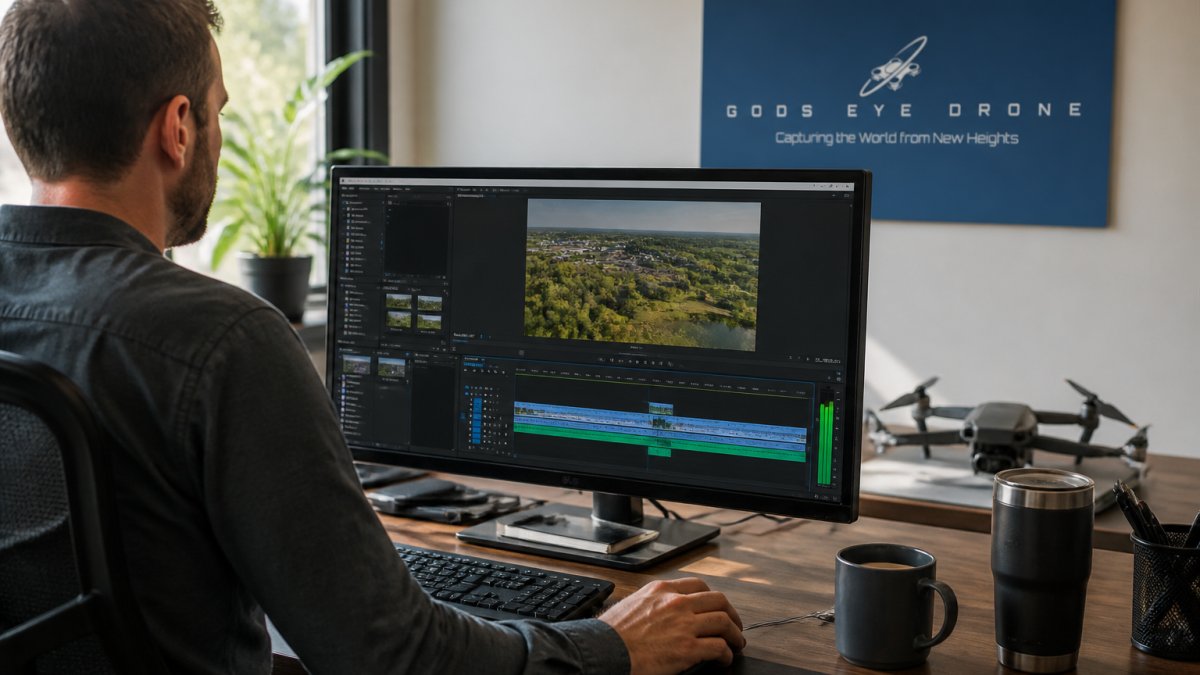
Create a preview by pressing Enter or spacebar in Premiere Pro. Let the preview render fully before judging the results.
Check your entire clip, not just the beginning. Stabilization can behave differently depending on the amount of motion in different sections.
Watch for artifacts or unnatural movement. The frame shouldn't warp or distort visibly. Pans should feel smooth but not unnaturally slow.
Once you're satisfied with the preview, render your final output. Stabilization rendering takes time.
Export your stabilized footage in a high-quality format. ProRes 422 HQ or DNxHD are excellent choices for maintaining quality while keeping file sizes manageable.
Common Mistakes to Avoid When Stabilizing Drone Video
The most common mistake is over-stabilizing. Pushing Stabilization Strength to 100 and Smoothness to maximum creates footage that looks fake and unnatural.
Start conservative. Apply stabilization at 70% strength and 50% smoothness. Increase gradually if you need more smoothing.
Another frequent error is stabilizing before color grading or other effects. Apply stabilization to your original footage first, then add effects on top.
Don't ignore your source footage quality. Heavily compressed or low-bitrate video stabilizes poorly. The software has less information to work with and produces worse results.
Avoid applying stabilization to footage that doesn't need it.
Many people forget to check their framing after stabilization. The crop and any edge artifacts can ruin an otherwise perfect shot.
Preventing Shaky Footage on Your Next Drone Flight
The best approach to fixing shaky drone video is preventing it in the first place.
Start with drone maintenance. Check propellers, motors, and gimbal before every flight. Replace worn propellers immediately.
Fly in calm conditions when possible. Early morning or late evening typically has the most stable air.
Use faster shutter speeds to minimize rolling shutter effects. Shoot at 1/500th or faster when lighting allows.
Set your gimbal to smooth mode or the highest available stabilization setting. Most drones offer multiple gimbal modes.
Fly smoothly and deliberately. Avoid sudden movements or rapid direction changes. Plan your shots before you fly.
At Gods Eye Drone, our certified pilots prioritize smooth, stable footage from the moment we launch.
Frequently Asked Questions
How do I stabilize shaky drone footage in post-production?
Use automatic stabilization tools in your video editor. In Premiere Pro, apply the Warp Stabilizer effect to your clip, let it analyze the motion, then adjust smoothness and strength settings. Start with 50-70% smoothness and increase gradually. Preview the result to ensure the stabilization doesn't introduce warping or excessive cropping. Other editors like DaVinci Resolve and Adobe After Effects offer similar motion-based stabilization. The key is balancing smoothness with image quality, as aggressive settings can degrade your footage.
Can you fix shaky drone video without cropping it?
Partial cropping is often unavoidable with stabilization, but you can minimize it. Use lower smoothness values (40-50%) to reduce edge artifacts. Some editors offer position-only stabilization that avoids rotation and scale adjustments, preserving more of your original frame. Another approach is to stabilize at the source: shoot at higher frame rates (60fps or 120fps) and use gimbal settings that reduce motor vibration. If cropping is critical, consider shooting with more headroom in your composition during capture.
What causes the jello effect in drone videos?
Jello effect occurs when your drone's camera sensor experiences rolling shutter distortion combined with vibration or rapid movement. The sensor reads the image line-by-line rather than all at once, so fast camera movement or propeller vibration causes parts of the frame to shift before others are captured. This creates a warped, jelly-like appearance. To reduce it, fly at steady speeds, avoid abrupt gimbal movements, and ensure propeller balance. In post-production, lower stabilization smoothness values and use motion-based stabilization rather than aggressive warp effects to avoid amplifying the distortion.
How can I prevent shaky drone footage on my next flight?
Prevention is more effective than correction. Check that your propellers are balanced and undamaged, as imbalanced props create constant vibration. Calibrate your gimbal before each flight. Fly in lighter wind conditions and avoid sudden stick movements. Use higher frame rates (60fps minimum) which provide more data for stabilization. Maintain steady altitude and avoid hovering in gusty conditions. If your drone has gimbal smoothness or stabilization settings, adjust them for your shot type. These capture-level improvements reduce the need for aggressive post-production stabilization.
Shaky drone footage doesn't have to derail your project. Whether you're dealing with propeller vibration, rolling shutter wobble, or environmental factors, the right stabilization approach can transform your footage. For professional-quality results from capture through delivery, Gods Eye Drone brings certified expertise and state-of-the-art technology to every project. Book Now to discuss how we can help you capture and deliver footage that exceeds expectations.